How to use Dynamic Multichoice Macros
The dynamic multichoice macros is a feature created by SBird to replace the much more cumbersome vanilla multichoice system. This document details how to use this feature.
The Macros
There are three types of macros that you can use in your scripting, dynmultichoice, dynmultipush, and dynmultistack.
dynmultichoice
dynmultichoice is the simplest macro and what you’ll use the most. Here’s a sample of using dynmultichoice in your script:
EventScript_ExampleScript::
	dynmultichoice 0, 0, FALSE, 2, 0, DYN_MULTICHOICE_CB_NONE, EventScript_ExampleScript_Text_Choice1, EventScript_ExampleScript_Text_Choice2, EventScript_ExampleScript_Text_Choice3
	switch VAR_RESULT
	case 0, EventScript_ExampleScript_GivePotion
	case 1, EventScript_ExampleScript_GivePokeball
	case 2, EventScript_ExampleScript_GiveAcroBike
EventScript_ExampleScript_ExampleScriptContinue:
	end

EventScript_ExampleScript_GivePotion:
	giveitem ITEM_POTION, 1
	goto EventScript_ExampleScript_ExampleScriptContinue

EventScript_ExampleScript_GivePokeball:
	giveitem ITEM_POKE_BALL, 1
	goto EventScript_ExampleScript_ExampleScriptContinue

EventScript_ExampleScript_GiveAcroBike:
	giveitem ITEM_ACRO_BIKE, 1
	goto EventScript_ExampleScript_ExampleScriptContinue


EventScript_ExampleScript_Text_Choice1:
	.string "Choice 1$"

EventScript_ExampleScript_Text_Choice2:
	.string "Choice 2$"

EventScript_ExampleScript_Text_Choice3:
	.string "Choice 3$"
Here is a look at the macro and it’s arguments:
dynmultichoice left:req, top:req, ignoreBPress:req, maxBeforeScroll:req, initialSelected:req, callbacks:req argv:vararg
left
- Expected Value: Integer (0-26)
- Determines the x-coordinate of where your menu starts from its top-left corner (explanation below)
top
- Expected Value: Integer (0-19)
- Determines the y-coordinate of where your menu starts from its top-left corner (explanation below)
ignoreBPress
- Expected Value: True/False
- Controls whether the player can exit using the B button. If set to true, the player cannot exit.
maxBeforeScroll
- Expected Value: Integer
- Controls how many options are shown before the player has to scroll.
initialSelected
- Expected Value: Integer
- Chooses which option (from a 0-index) is already selected upon opening the menu.
callbacks
- Expected Value: Constant
- Designates which callback is used. Elaborated more later.
argv
- Expected Value: String
- The choices that the player can choose from the menu.
How to position arguments left and top:
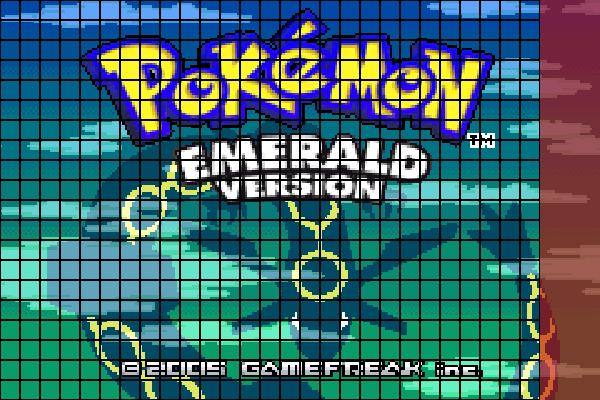
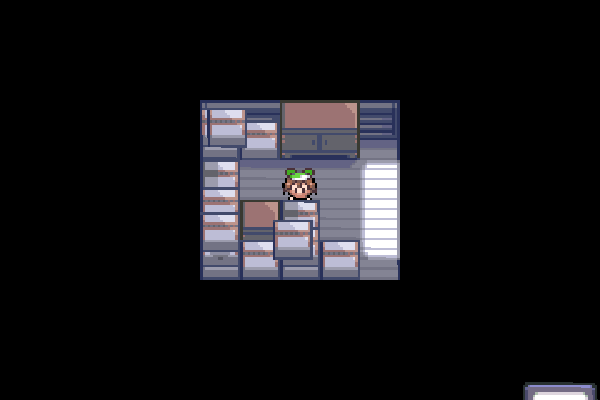
Below is a breakdown of the Emerald Screen into a 27x20 grid. These are all the possible starting positions that you can have your multichoice menu begin. Do note, while the macro can create a menu that clips below the bottom of the screen, it cannot create one that clips through the right border. It will always adjust so that the full width of the menu is visible, but it’s possible to have it clip beyond the bottom.
Grid Guide:
Example of clipping:
Let’s take a look at the dynmultichoice from earlier:
dynmultichoice 0, 0, FALSE, 2, 0, DYN_MULTICHOICE_CB_NONE, EventScript_ExampleScript_Text_Choice1, EventScript_ExampleScript_Text_Choice2, EventScript_ExampleScript_Text_Choice3
left
- Value: 0
- Explanation: X Coordinate will be on the first tile (8x8 pixels) of the x-axis
top
- Value: 0
- Explanation: Y Coordinate will be on the first tile (8x8 pixels) of the y-axis
ignoreBPress
- Value: FALSE
- Explanation: Pressing B will exit the multichoice.
maxBeforeScroll
- Value: 2
- Explanation: Shows 2 options before player has to scroll. This means the 3rd option is hidden until scrolled to.
initialSelected
- Value: 0
- Explanation: The first option is selected when the menu is opened through the script.
callbacks
- Value: DYN_MULTICHOICE_CB_NONE
- Explanation: No callback will be used.
argv
- Values:
- EventScript_ExampleScript_Text_Choice1
- EventScript_ExampleScript_Text_Choice2
- EventScript_ExampleScript_Text_Choice3
- EventScript_ExampleScript_Text_Choice1
- Explanation: The choices that the player can choose from the menu. These text scripts are for what name is being displayed.
In a Dynamic multichoice each option has an ID, which is their value. A chosen option’s ID is stored in VAR_RESULT. The IDs start at index 0 for regular dynmultichoice. If a player chooses the first option, VAR_RESULT equals 0. If they chose the second option, VAR_RESULT equals 1, and so on. The best way to use these is by following with a switch or compare, like the following examples:
switch macro:
EventScript_ExampleScript::
	dynmultichoice 0, 0, FALSE, 2, 0, DYN_MULTICHOICE_CB_NONE, EventScript_ExampleScript_Text_Choice1, EventScript_ExampleScript_Text_Choice2, EventScript_ExampleScript_Text_Choice3
	switch VAR_RESULT
	case 0, EventScript_ExampleScript_GivePotion
	case 1, EventScript_ExampleScript_GivePokeball
	case 2, EventScript_ExampleScript_GiveAcroBike
EventScript_ExampleScript_ExampleScriptContinue:
	end

EventScript_ExampleScript_GivePotion:
	giveitem ITEM_POTION, 1
	goto EventScript_ExampleScript_ExampleScriptContinue

EventScript_ExampleScript_GivePokeball:
	giveitem ITEM_POKE_BALL, 1
	goto EventScript_ExampleScript_ExampleScriptContinue

EventScript_ExampleScript_GiveAcroBike:
	giveitem ITEM_ACRO_BIKE, 1
	goto EventScript_ExampleScript_ExampleScriptContinue


EventScript_ExampleScript_Text_Choice1:
	.string "Choice 1$"

EventScript_ExampleScript_Text_Choice2:
	.string "Choice 2$"

EventScript_ExampleScript_Text_Choice3:
	.string "Choice 3$"
In this example, the switch macro takes the value of VAR_RESULT and goes to the corresponding script.
compare macro:
EventScript_ExampleScript::
	dynmultichoice 0, 0, FALSE, 2, 0, DYN_MULTICHOICE_CB_NONE, EventScript_ExampleScript_Text_Choice1, EventScript_ExampleScript_Text_Choice2, EventScript_ExampleScript_Text_Choice3
	compare VAR_RESULT, 0
	goto_if_eq EventScript_ExampleScript_GivePotion
EventScript_ExampleScript_ExampleScriptCompareGivePokeball:
	compare VAR_RESULT, 1
	goto_if_eq EventScript_ExampleScript_GivePokeball
EventScript_ExampleScript_ExampleScript_CompareAcroBike:
	compare VAR_RESULT, 2
	goto_if_eq EventScript_ExampleScript_GiveAcroBike
EventScript_ExampleScript_End:
	end

EventScript_ExampleScript_GivePotion:
	giveitem ITEM_POTION, 1
	goto EventScript_ExampleScript_ExampleScriptCompareGivePokeball

EventScript_ExampleScript_GivePokeball:
	giveitem ITEM_POKE_BALL, 1
	goto EventScript_ExampleScript_ExampleScript_CompareAcroBike

EventScript_ExampleScript_GiveAcroBike:
	giveitem ITEM_ACRO_BIKE, 1
	goto EventScript_ExampleScript_End


EventScript_ExampleScript_Text_Choice1:
	.string "Choice 1$"

EventScript_ExampleScript_Text_Choice2:
	.string "Choice 2$"

EventScript_ExampleScript_Text_Choice3:
	.string "Choice 3$"
In this example, the compare macro takes the value of VAR_RESULT and compares it each to 0, 1, and 2. If it matches, it goes to a different script and runs it. If it doesn’t match, it continues.
dynmultipush and dynmultistack
The way these two work is simple. dynmultistack takes all the consecutive dynmultipush before it and makes a menu with them as options.
Here’s an example, using our options from above:
EventScript_ExampleScript::
	dynmultipush EventScript_ExampleScript_Text_Choice1, 0
	dynmultipush EventScript_ExampleScript_Text_Choice2, 1
	dynmultipush EventScript_ExampleScript_Text_Choice3, 2
	dynmultistack 0, 0, FALSE, 2, FALSE, 0, DYN_MULTICHOICE_CB_NONE
	switch VAR_RESULT
	case 0, EventScript_ExampleScript_GivePotion
	case 1, EventScript_ExampleScript_GivePokeball
	case 2, EventScript_ExampleScript_GiveAcroBike
EventScript_ExampleScript_ExampleScriptContinue:
	end

EventScript_ExampleScript_GivePotion:
	giveitem ITEM_POTION, 1
	goto EventScript_ExampleScript_ExampleScriptContinue

EventScript_ExampleScript_GivePokeball:
	giveitem ITEM_POKE_BALL, 1
	goto EventScript_ExampleScript_ExampleScriptContinue

EventScript_ExampleScript_GiveAcroBike:
	giveitem ITEM_ACRO_BIKE, 1
	goto EventScript_ExampleScript_ExampleScriptContinue


EventScript_ExampleScript_Text_Choice1:
	.string "Choice 1$"

EventScript_ExampleScript_Text_Choice2:
	.string "Choice 2$"

EventScript_ExampleScript_Text_Choice3:
	.string "Choice 3$"
As you can see, they are somewhat different, but share much of the same arguments.
dynmultipush name:req, id:req
dynmultistack left:req, top:req, ignoreBPress:req, maxBeforeScroll:req, shouldSort:req, initialSelected:req, callbacks:req
name
- Expected Value: String
- Description: One of the choices that the player can choose from the menu.
id
- Expected Value: Integer/Constants
- Description: What value
VAR_RESULTis set to when this option is chosen.
left
- Expected Value: Integer (0-26)
- Description: Determines the x-coordinate of where your menu starts from its top-left corner
(explanation below)
top
- Expected Value: Integer (0-19)
- Description: Determines the y-coordinate of where your menu starts from its top-left corner
(explanation below)
ignoreBPress
- Expected Value: True/False
- Description: Controls whether the player can exit using the B button. If set to true, the player cannot exit.
maxBeforeScroll
- Expected Value: Integer (Default: 6)
- Description: Shows how many options are shown before the player has to scroll.
initialSelected
- Expected Value: Integer
- Description: Chooses which option (from a 0-index) is already selected upon opening the menu.
shouldSort
- Expected Value: True/False
- Description: Determines whether the options are sorted in ascending order according to their ID.
callbacks
- Expected Value: Constant
- Description: Designates which callback constants are used. Elaborated more later
Some of the use cases for using dynmultipush and dynmultistack are the following:
A menu with conditional options.
EventScript_ExampleScript::
	dynmultipush EventScript_ExampleScript_Text_Choice1, 0
	dynmultipush EventScript_ExampleScript_Text_Choice2, 1
	goto_if_set FLAG_SYS_POKEMON_GET, EventScript_ExampleScript_CheckIfFlagTrue
EventScript_ExampleScript_ExampleScriptContinue:
	dynmultistack 0, 0, FALSE, 2, FALSE, 0, DYN_MULTICHOICE_CB_NONE
	switch VAR_RESULT
	case 0, EventScript_ExampleScript_GivePotion
	case 1, EventScript_ExampleScript_GivePokeball
	case 2, EventScript_ExampleScript_GiveAcroBike
EventScript_ExampleScript_End:
	end


EventScript_ExampleScript_CheckIfFlagTrue:
	dynmultipush EventScript_ExampleScript_Text_Choice3, 2
	goto EventScript_ExampleScript_ExampleScriptContinue

EventScript_ExampleScript_GivePotion:
	giveitem ITEM_POTION, 1
	goto EventScript_ExampleScript_GivePokeball

EventScript_ExampleScript_GivePokeball:
	giveitem ITEM_POKE_BALL, 1
	goto EventScript_ExampleScript_GivePokeball

EventScript_ExampleScript_GiveAcroBike:
	giveitem ITEM_ACRO_BIKE, 1
	goto EventScript_ExampleScript_End


EventScript_ExampleScript_Text_Choice1:
	.string "Choice 1$"

EventScript_ExampleScript_Text_Choice2:
	.string "Choice 2$"

EventScript_ExampleScript_Text_Choice3:
	.string "Choice 3$"
This first example shows the third option only unlock once the flag FLAG_SYS_POKEMON_GET is set to TRUE.
A particularly large menu.
EventScript_ExampleScript::
	dynmultipush EventScript_ExampleScript_Text_Normal, 1
	dynmultipush EventScript_ExampleScript_Text_Fighting, 2
	dynmultipush EventScript_ExampleScript_Text_Flying, 3
	dynmultipush EventScript_ExampleScript_Text_Poison, 4
	dynmultipush EventScript_ExampleScript_Text_Ground, 5
	dynmultipush EventScript_ExampleScript_Text_Rock, 6
	dynmultipush EventScript_ExampleScript_Text_Bug, 7
	dynmultipush EventScript_ExampleScript_Text_Ghost, 8
	dynmultipush EventScript_ExampleScript_Text_Steel, 9
	dynmultipush EventScript_ExampleScript_Text_Fire, 10
	dynmultipush EventScript_ExampleScript_Text_Water, 11
	dynmultipush EventScript_ExampleScript_Text_Grass, 12
	dynmultipush EventScript_ExampleScript_Text_Electric, 13
	dynmultipush EventScript_ExampleScript_Text_Psychic, 14
	dynmultipush EventScript_ExampleScript_Text_Ice, 15
	dynmultipush EventScript_ExampleScript_Text_Dragon, 16
	dynmultipush EventScript_ExampleScript_Text_Dark, 17
	dynmultipush EventScript_ExampleScript_Text_Fairy, 18
	dynmultistack 0, 0, FALSE, 2, FALSE, 0, DYN_MULTICHOICE_CB_NONE
	switch VAR_RESULT
	case 1, Eventscript_Examplescript_GiveNormalGem
	case 2, Eventscript_Examplescript_GiveFightingGem
	case 3, Eventscript_Examplescript_GiveFlyingGem
	case 4, Eventscript_Examplescript_GivePoisonGem
	case 5, Eventscript_Examplescript_GiveGroundGem
	case 6, Eventscript_Examplescript_GiveRockGem
	case 7, Eventscript_Examplescript_GiveBugGem
	case 8, Eventscript_Examplescript_GiveGhostGem
	case 9, Eventscript_Examplescript_GiveSteelGem
	case 10, Eventscript_Examplescript_GiveFireGem
	case 11, Eventscript_Examplescript_GiveWaterGem
	case 12, Eventscript_Examplescript_GiveGrassGem
	case 13, Eventscript_Examplescript_GiveElectricGem
	case 14, Eventscript_Examplescript_GivePsychicGem
	case 15, Eventscript_Examplescript_GiveIceGem
	case 16, Eventscript_Examplescript_GiveDragonGem
	case 17, Eventscript_Examplescript_GiveDarkGem
	case 18, Eventscript_Examplescript_GiveFairyGem
EventScript_ExampleScript_ExampleScriptContinue:
	end

Eventscript_Examplescript_GiveNormalGem:
	giveitem ITEM_NORMAL_GEM, 1
	goto EventScript_ExampleScript_ExampleScriptContinue

Eventscript_Examplescript_GiveFightingGem:
	giveitem ITEM_FIGHTING_GEM, 1
	goto EventScript_ExampleScript_ExampleScriptContinue

Eventscript_Examplescript_GiveFlyingGem:
	giveitem ITEM_FLYING_GEM, 1
	goto EventScript_ExampleScript_ExampleScriptContinue

Eventscript_Examplescript_GivePoisonGem:
	giveitem ITEM_POISON_GEM, 1
	goto EventScript_ExampleScript_ExampleScriptContinue

Eventscript_Examplescript_GiveGroundGem:
	giveitem ITEM_GROUND_GEM, 1
	goto EventScript_ExampleScript_ExampleScriptContinue

Eventscript_Examplescript_GiveRockGem:
	giveitem ITEM_ROCK_GEM, 1
	goto EventScript_ExampleScript_ExampleScriptContinue

Eventscript_Examplescript_GiveBugGem:
	giveitem ITEM_BUG_GEM, 1
	goto EventScript_ExampleScript_ExampleScriptContinue

Eventscript_Examplescript_GiveGhostGem:
	giveitem ITEM_GHOST_GEM, 1
	goto EventScript_ExampleScript_ExampleScriptContinue

Eventscript_Examplescript_GiveSteelGem:
	giveitem ITEM_STEEL_GEM, 1
	goto EventScript_ExampleScript_ExampleScriptContinue

Eventscript_Examplescript_GiveFireGem:
	giveitem ITEM_FIRE_GEM, 1
	goto EventScript_ExampleScript_ExampleScriptContinue

Eventscript_Examplescript_GiveWaterGem:
	giveitem ITEM_WATER_GEM, 1
	goto EventScript_ExampleScript_ExampleScriptContinue

Eventscript_Examplescript_GiveGrassGem:
	giveitem ITEM_GRASS_GEM, 1
	goto EventScript_ExampleScript_ExampleScriptContinue

Eventscript_Examplescript_GiveElectricGem:
	giveitem ITEM_ELECTRIC_GEM, 1
	goto EventScript_ExampleScript_ExampleScriptContinue

Eventscript_Examplescript_GivePsychicGem:
	giveitem ITEM_PSYCHIC_GEM, 1
	goto EventScript_ExampleScript_ExampleScriptContinue

Eventscript_Examplescript_GiveIceGem:
	giveitem ITEM_ICE_GEM, 1
	goto EventScript_ExampleScript_ExampleScriptContinue

Eventscript_Examplescript_GiveDragonGem:
	giveitem ITEM_DRAGON_GEM, 1
	goto EventScript_ExampleScript_ExampleScriptContinue

Eventscript_Examplescript_GiveDarkGem:
	giveitem ITEM_DARK_GEM, 1
	goto EventScript_ExampleScript_ExampleScriptContinue

Eventscript_Examplescript_GiveFairyGem:
	giveitem ITEM_FAIRY_GEM, 1
	goto EventScript_ExampleScript_ExampleScriptContinue


EventScript_ExampleScript_Text_Normal:
	.string "Normal$"

EventScript_ExampleScript_Text_Fighting:
	.string "Fighting$"

EventScript_ExampleScript_Text_Flying:
	.string "Flying$"

EventScript_ExampleScript_Text_Poison:
	.string "Poison$"

EventScript_ExampleScript_Text_Ground:
	.string "Ground$"

EventScript_ExampleScript_Text_Rock:
	.string "Rock$"

EventScript_ExampleScript_Text_Bug:
	.string "Bug$"

EventScript_ExampleScript_Text_Ghost:
	.string "Ghost$"

EventScript_ExampleScript_Text_Steel:
	.string "Steel$"

EventScript_ExampleScript_Text_Fire:
	.string "Fire$"

EventScript_ExampleScript_Text_Water:
	.string "Water$"

EventScript_ExampleScript_Text_Grass:
	.string "Grass$"

EventScript_ExampleScript_Text_Electric:
	.string "Electric$"

EventScript_ExampleScript_Text_Psychic:
	.string "Psychic$"

EventScript_ExampleScript_Text_Ice:
	.string "Ice$"

EventScript_ExampleScript_Text_Dragon:
	.string "Dragon$"

EventScript_ExampleScript_Text_Dark:
	.string "Dark$"

EventScript_ExampleScript_Text_Fairy:
	.string "Fairy$"
This menu stacks each Pokémon type as an option with it’s own line in the script, rather than one long macro of dynmultichoice.
For reference, the dynmultichoice version would look like so:
dynmultichoice 0, 0, FALSE, 2, 0, DYN_MULTICHOICE_CB_NONE, EventScript_ExampleScript_Text_Normal, EventScript_ExampleScript_Text_Fighting, EventScript_ExampleScript_Text_Flying, EventScript_ExampleScript_Text_Poison, EventScript_ExampleScript_Text_Ground, EventScript_ExampleScript_Text_Rock, EventScript_ExampleScript_Text_Bug, EventScript_ExampleScript_Text_Ghost, EventScript_ExampleScript_Text_Steel, EventScript_ExampleScript_Text_Fire, EventScript_ExampleScript_Text_Water, EventScript_ExampleScript_Text_Grass, EventScript_ExampleScript_Text_Electric, EventScript_ExampleScript_Text_Psychic, EventScript_ExampleScript_Text_Ice, EventScript_ExampleScript_Text_Dragon, EventScript_ExampleScript_Text_Dark, EventScript_ExampleScript_Text_Fairy
Having needing the IDs of each item be a particular value.
EventScript_ExampleScript::
	lock
	faceplayer
	msgbox LittlerootTown_Text_CanUsePCToStoreItems, MSGBOX_DEFAULT
	random ITEMS_COUNT
	bufferitemname STR_VAR_1, VAR_RESULT
	dynmultipush EventScript_ExampleScript_Text_Choice1, VAR_RESULT
	random ITEMS_COUNT
	bufferitemname STR_VAR_2, VAR_RESULT
	dynmultipush EventScript_ExampleScript_Text_Choice2, VAR_RESULT
	random ITEMS_COUNT
	bufferitemname STR_VAR_3, VAR_RESULT
	dynmultipush EventScript_ExampleScript_Text_Choice3, VAR_RESULT
	dynmultistack 0, 0, TRUE, 6, FALSE, 0, DYN_MULTICHOICE_CB_SHOW_ITEM
	release
	end


EventScript_ExampleScript_Text_Choice1:
	.string "{STR_VAR_1}$"

EventScript_ExampleScript_Text_Choice2:
	.string "{STR_VAR_2}$"

EventScript_ExampleScript_Text_Choice3:
	.string "{STR_VAR_3}$"
The above menu creates a short menu that makes a list of three items. It takes the result from VAR_RESULT to be the id of the menu option. The VAR_RESULT must be set before each dynmultipush in order to have a different value.
Callbacks
Put simply, a callback can be explained as follows:
Function A is given as a callback to function B so B can call A whenever it needs to.
For the purposes of the dynamic multichoice menu, the callbacks are a set of functions that are called while the menu is open. For this, we’ll be breaking down DYN_MULTICHOICE_CB_SHOW_ITEM.
In src/script_menu.c, you’ll find the following array:
static const struct DynamicListMenuEventCollection sDynamicListMenuEventCollections[] =
{
    [DYN_MULTICHOICE_CB_DEBUG] =
    {
        .OnInit = MultichoiceDynamicEventDebug_OnInit,
        .OnSelectionChanged = MultichoiceDynamicEventDebug_OnSelectionChanged,
        .OnDestroy = MultichoiceDynamicEventDebug_OnDestroy
    },
    [DYN_MULTICHOICE_CB_SHOW_ITEM] =
    {
        .OnInit = MultichoiceDynamicEventShowSprite_OnInit,
        .OnSelectionChanged = MultichoiceDynamicEventShowItem_OnSelectionChanged,
        .OnDestroy = MultichoiceDynamicEventShowSprite_OnDestroy
    },
    [DYN_MULTICHOICE_CB_SHOW_PKMN] =
    {
        .OnInit = MultichoiceDynamicEventShowSprite_OnInit,
        .OnSelectionChanged = MultichoiceDynamicEventShowPkmn_OnSelectionChanged,
        .OnDestroy = MultichoiceDynamicEventShowSprite_OnDestroy
    }
};
This is where each callback’s set of functions are collated. Each one has three functions that are called:
.OnInit: When the menu is first opened,.OnSelectionChanged: whenever a player chooses an option (is also called right after.OnInit),.OnDestroy: whenever the menu is exited.
For DYN_MULTICHOICE_CB_SHOW_ITEM, the breakdown is as follows:
.OnInit: Prepares for a sprite to be drawn on screen..OnSelectionChanged: Destroys the previous sprite, then draws the new sprite on screen..OnDestroy: Destroys the current sprite on screen.
Current callbacks that show sprites
-
DYN_MULTICHOICE_CB_SHOW_ITEMshows the item whose constant is equal to the current highlight option’s ID. Each constant is listed ininclude/constants/items.h. An item with the ID 0 will show nothing, an item with the ID 1 will show a PokéBall, an item with the ID 2 will show a Great Ball, and so on. -
DYN_MULTICHOICE_CB_SHOW_PKMNshows the Pokémon’s icon whose constant is equal to the current highlight option’s ID. Each constant is listed ininclude/constants/species.h. A Pokémon with the ID 0 will show the decamark, a Pokémon with the ID 1 will show a Bulbasaur, a Pokémon with the ID 2 will show an Ivysaur, and so on.